
Nearly everything about how we operate and communicate with you is about to change.
We have partnered with app developers Thrive It, to create a heavily augmented, bespoke version of Team Track to suit our needs and create the platform that we need to succeed in this modern world.
The TeamTrack app will soon be the main platform for:
- Receiving shift offers
- Job-sheets with all the info you need
- Clocking in & out
- Scheduling your Pirate & external work (if you wish), manage your life more efficiently.
- Tracking your earnings
- Giving us your availability
- Submitting Reports (Senior, Injury etc)
- Claiming Agreed Expenses
- Viewing & downloading training licences
- Updating your skills
- Reporting problems at work
- Viewing job documents, RAMS, Schedules and Plans
- Access Pirate Crew H&S info
Getting Started
First you’ll need the app. We’ll send you an email with an app link, but in the meantime if you want to get ahead and start using the app, the links are below.
When you first startup the app, you’ll need to sign in as a FREELANCER, with the same email address that you were sent the link to/we have on file for you. If you want to change your email address – now is the time – please contact the Pirate office.
If you are already linked to another company using TeamTrack, the email address used for all companies must be the same. Make sure you have the most up-to-date app version installed on your device.
The Home Screen
The Home Screen acts as your personal work schedule. From here, you can view all the events Pirate has booked or pencilled you for, as well as your own availability and events. Simply press on an entry to view or edit the details.
Add own event or availability
Press this button to add your personal and paid work events, or access the availability panel
Notifications
Access to your messages, reminders and confirmations from Pirate.
Date Range Select
The app opens on TODAY by default. Use this function to narrow down the calendar or browse past events.
From Today
Resets the home calendar to TODAY and onwards.
Event Search
Search calendar by Venue or Event Name, including Available and Not Available
Swipe Down
Swipe down to refresh the calendar to the most up to date details.
Offers of Work
We will inevitably still call and message you to offer you work (as we really dig talking to you) but from now on, all formal offers or confirmations of work will come from our system to your TeamTrack app.
You may receive an offer for a singular date, or for many dates on the same event. Each individual job will need it’s own response.
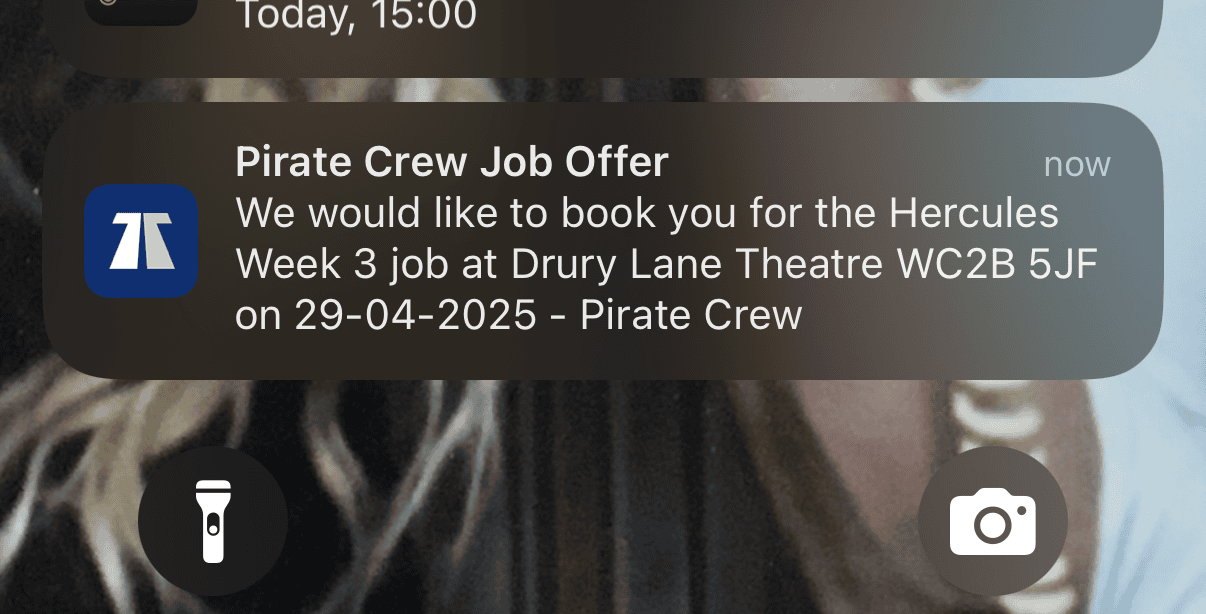
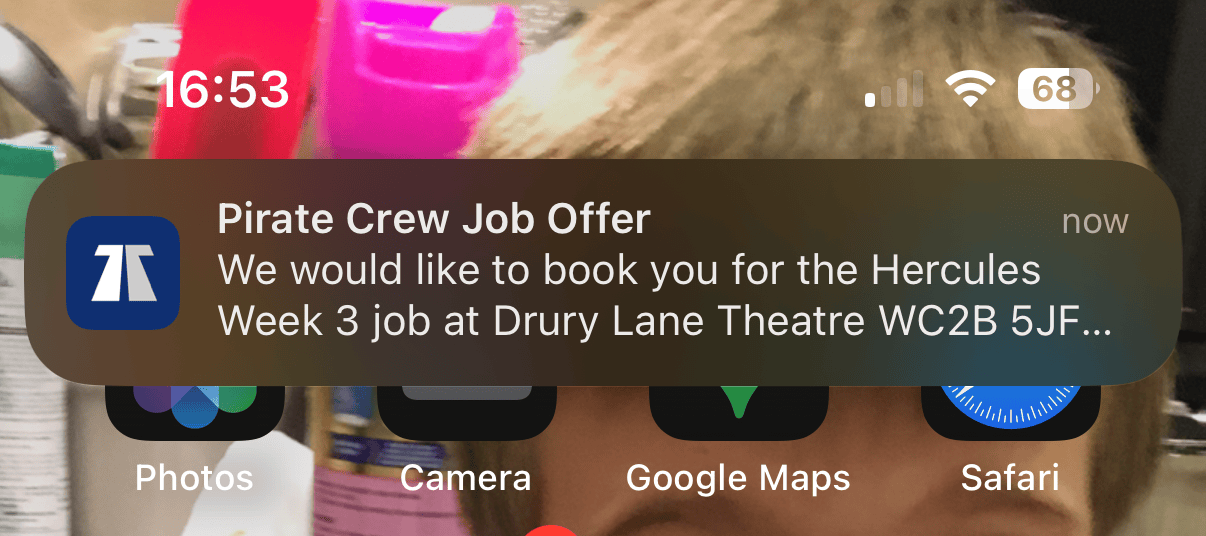
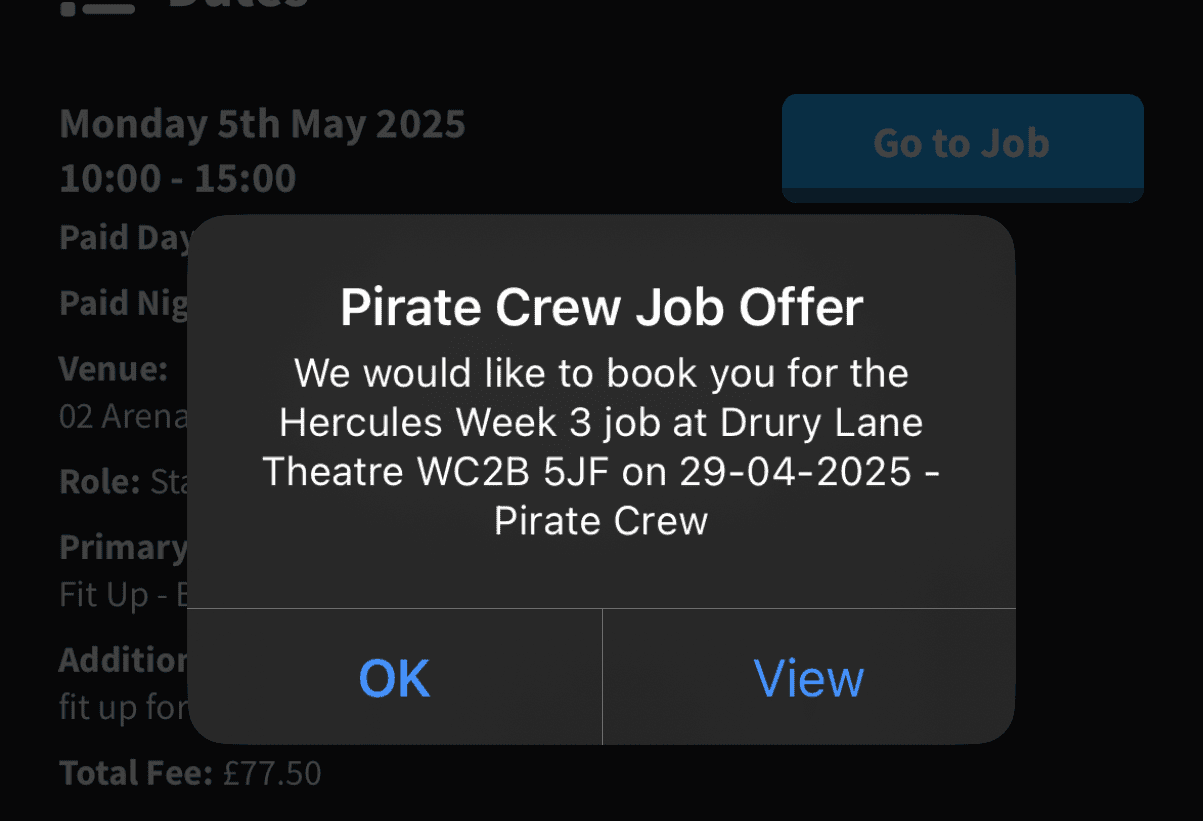
Whenever you receive a work offer from us, you’ll be notified by the app to your Lock or Home screen, or straight to the app if you’re already using it.
You’ll need to ensure that you have TeamTrack notifications allowed within your phone settings to know about work offers.
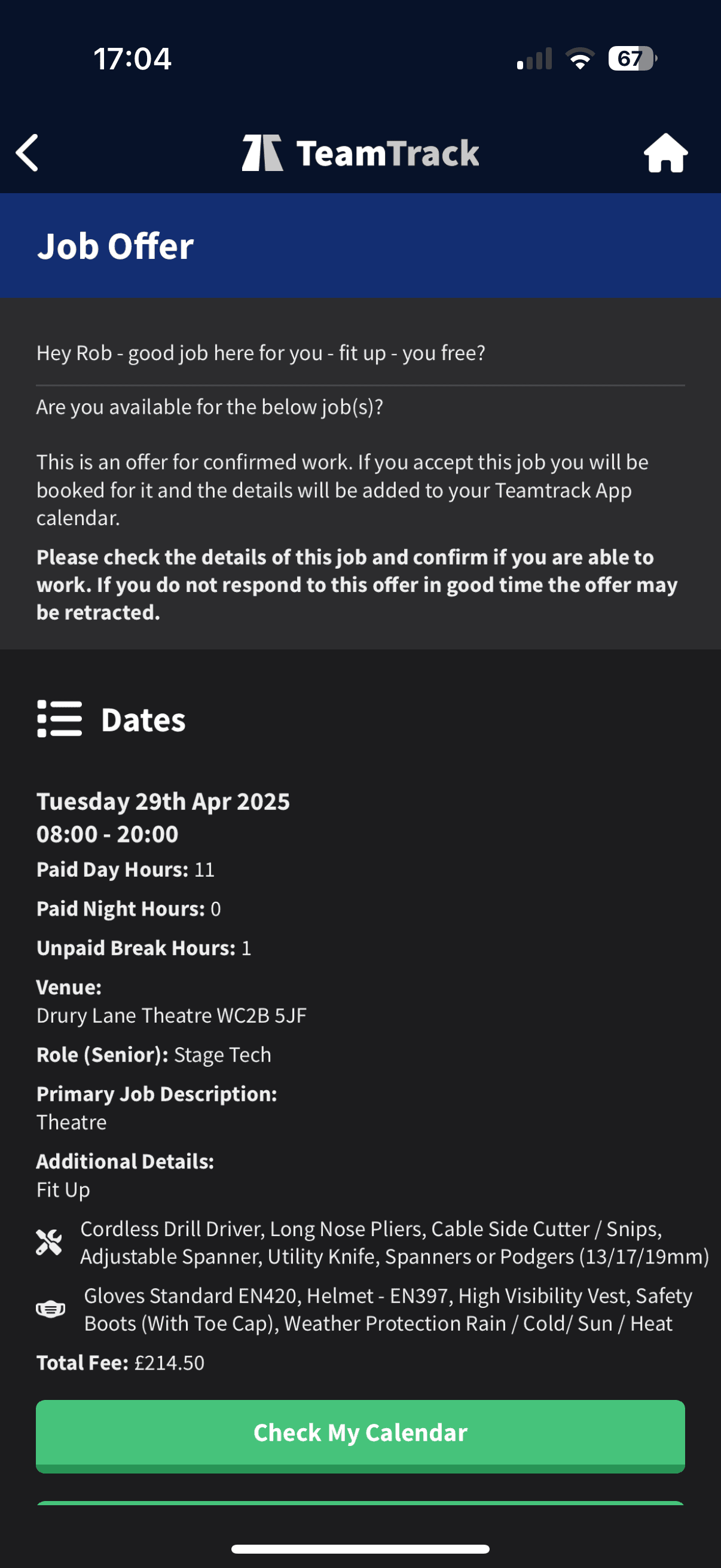
At the top of the offer might be a personal message direct to you about the job(s). Below this are some job details:
- Date & Times
- Paid Hours & Total Fee (not including pending agreed travel hours)
- Role and level,
- Venue & Job Description
- Tools and PPE requirements.
Offers Panel
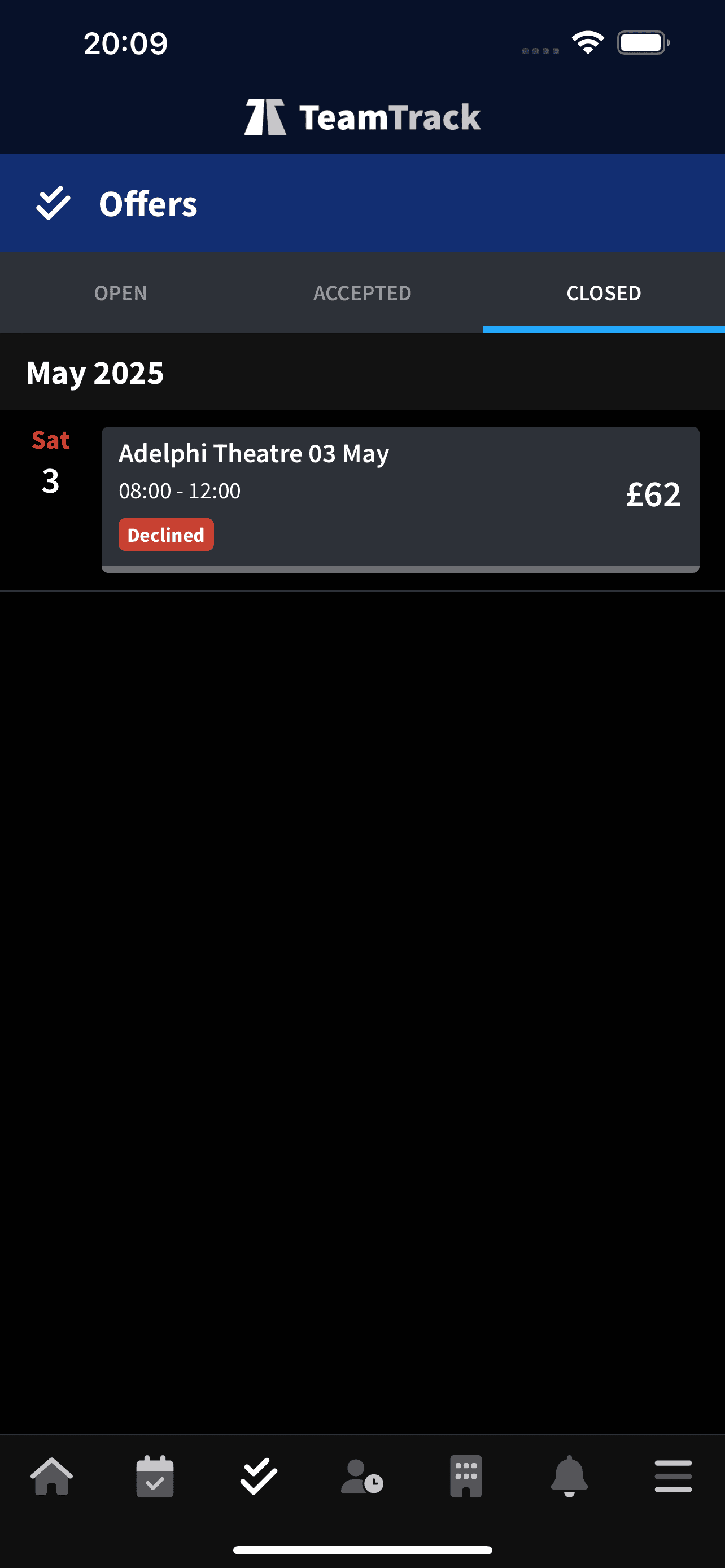
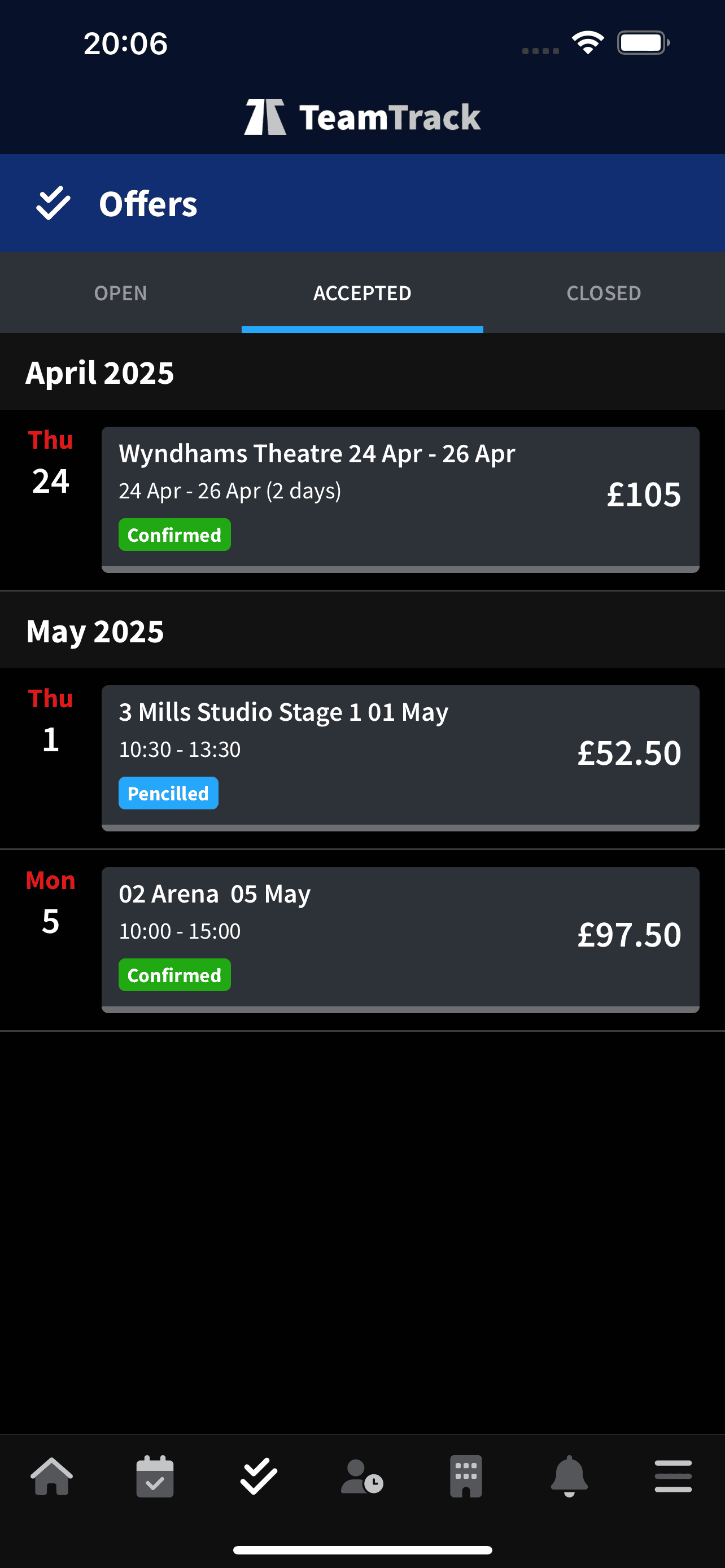
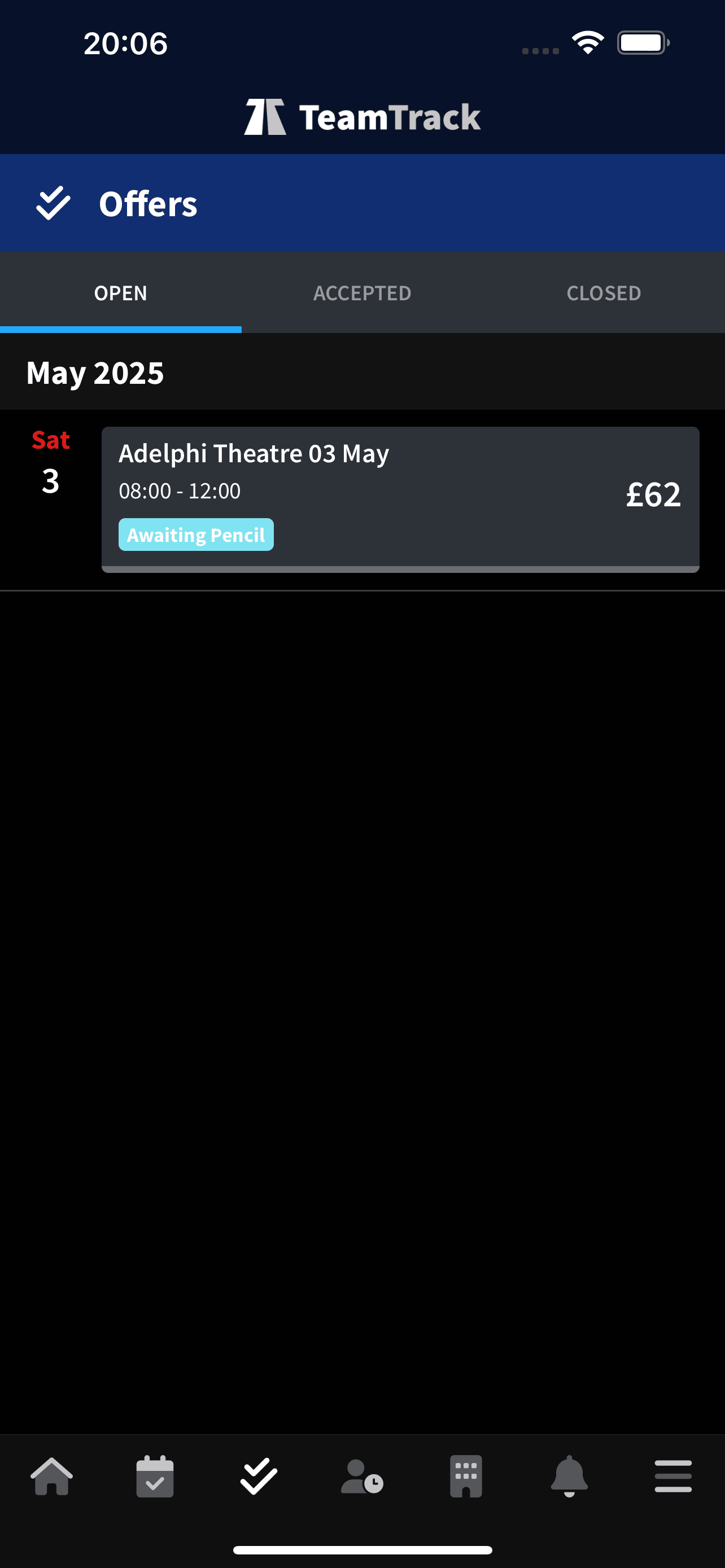
Once an offer is received in your app, it will get stored within the OFFERS panel.
In this panel you’ll find all the work you’ve been offered, split into 3 sections:
Open – Jobs that you have not responded to or confirmed your interest yet
Accepted – All the jobs that you’re either confirmed or pencilled on
Closed – Any job that you have rejected or has been cancelled.
Any offers of work can also be seen in your HOME calendar
For each job you can Check Your Calendar so you can see the events in your calendar around the job, to help you make an informed decision.
Send Message if you need more clarification on the job details before accepting or declining, then you can opt to send us a message which we’ll respond to asap. Any reply we send you will appear in your app notifications.
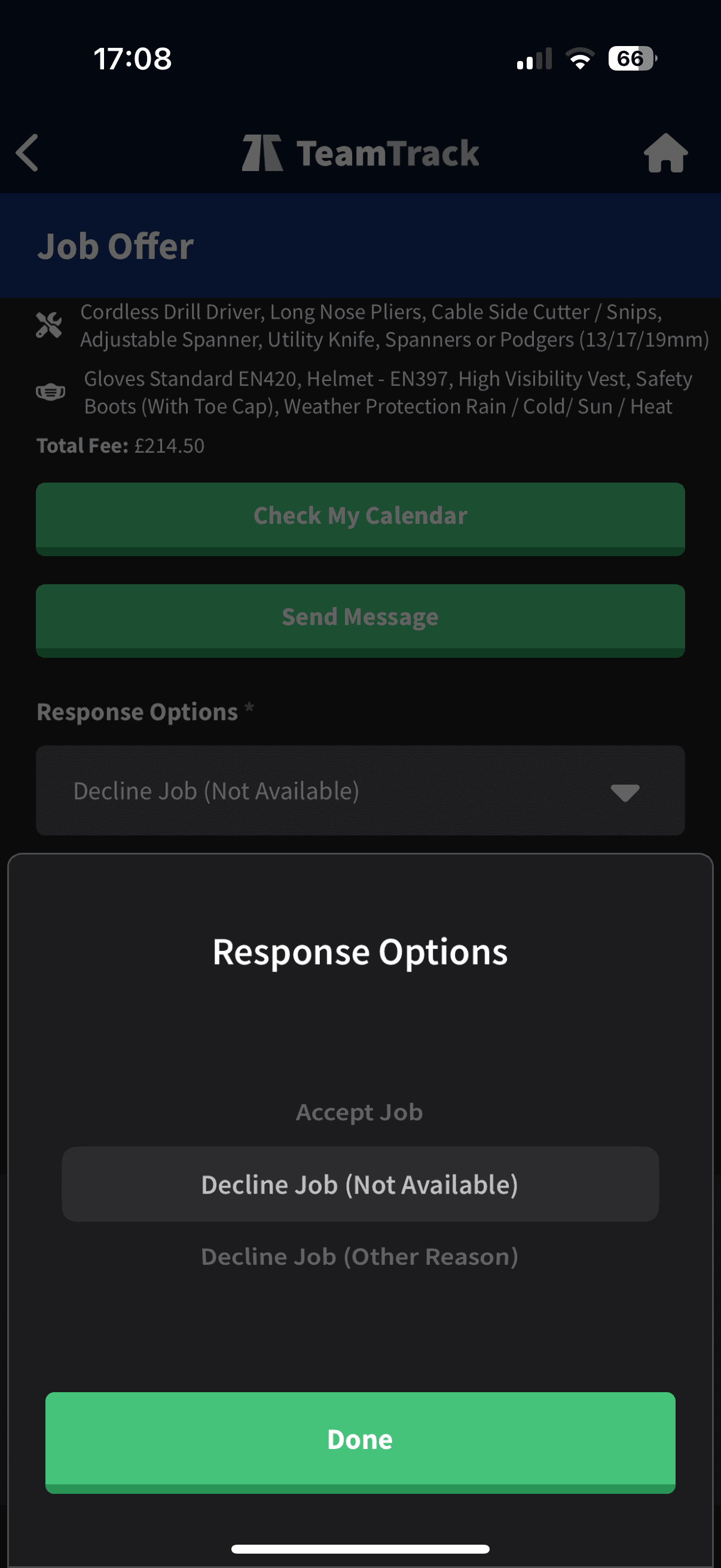
Your job offer response options will differ, depending on how soon the job is. If the job is soon, you’ll have the options to:
- Accept Job
- Decline Job (Not Available)
- Decline Job (Other Reason) and be asked to let us know why.
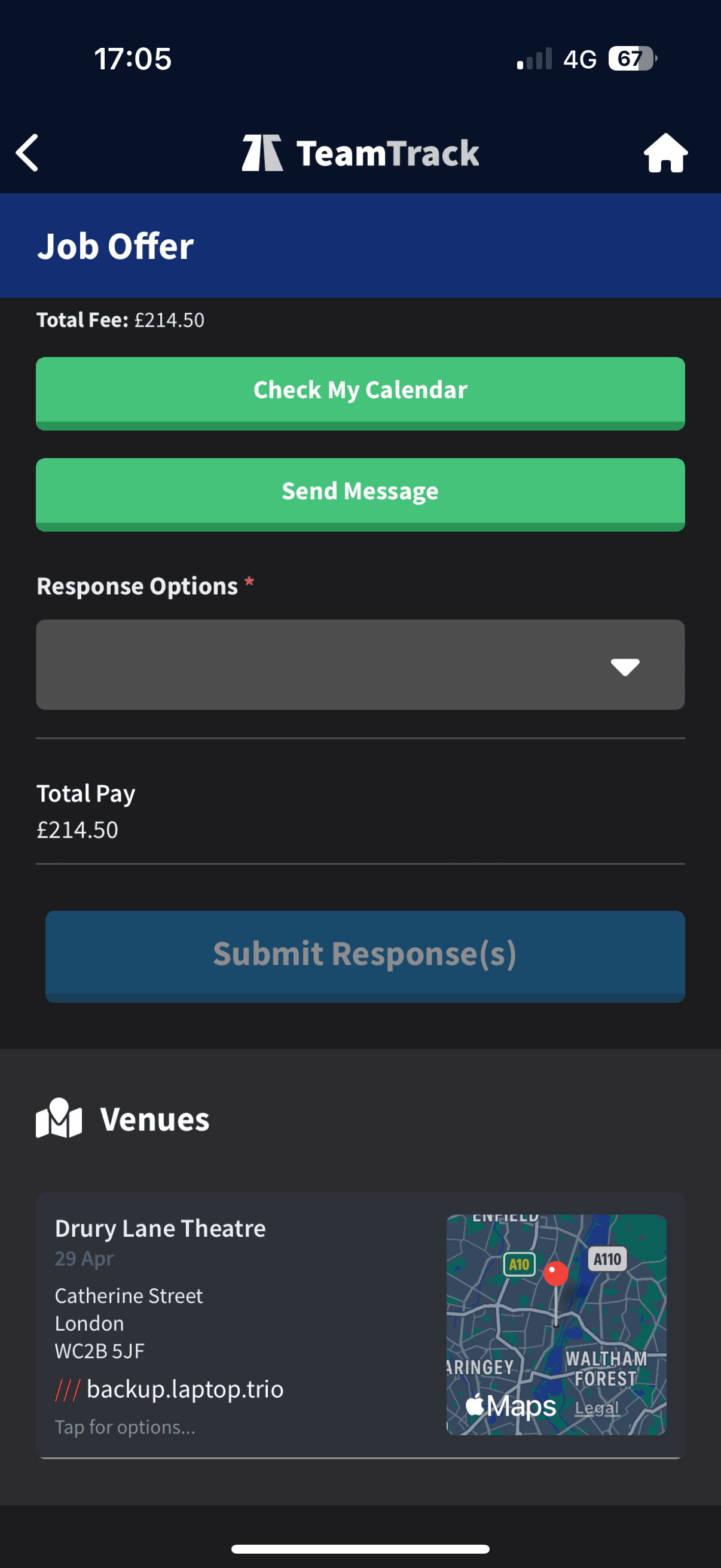
If the job is longer than 7 Days away, you can opt to choose Pencil Me In -This means that the job is reserved for you and waiting for you to confirm or decline by the end of the day of offer.
Simply access the offer again from the My Offers panel to give your final decision.
Any pencilled jobs will be added to your Home calendar and My Earnings panel.
It’s perfectly acceptable to not want a particular job but still be available to more offers so please be accurate in your responses.
If you aren’t available, then decline and then update your availability on the app.
Enhanced Job Details
Once you have confirmed a booking, you will then be privy to the enhanced details of a job. This is a complete replacement for old-school email jobsheets, which will no longer be sent to you.
Some details will change prior to the job, including who’s on your team or onsite contact. You will always be notified of any significant changes to the booking.
To access the job details, press on the calendar entry (Home Panel) or access through the GO TO JOB button on your offer.
Three tabs: shift, actions & people
SHIFT
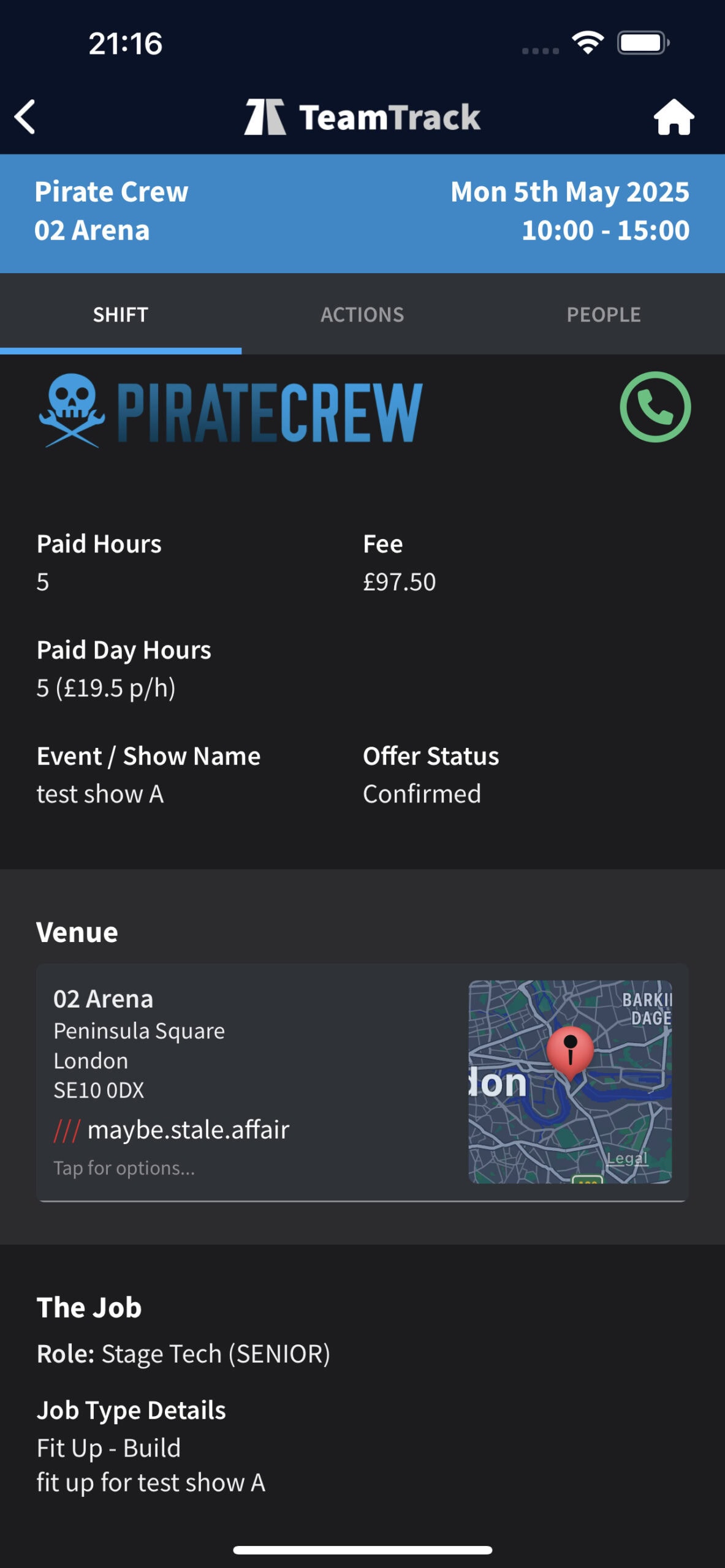
The Green Phone Button gets you straight through to most available person when you need to call the office.
At the top you’ll find how much you’re being paid for the shift. Agreed travel hours for jobs out of town won’t alway be listed here at the time of booking.
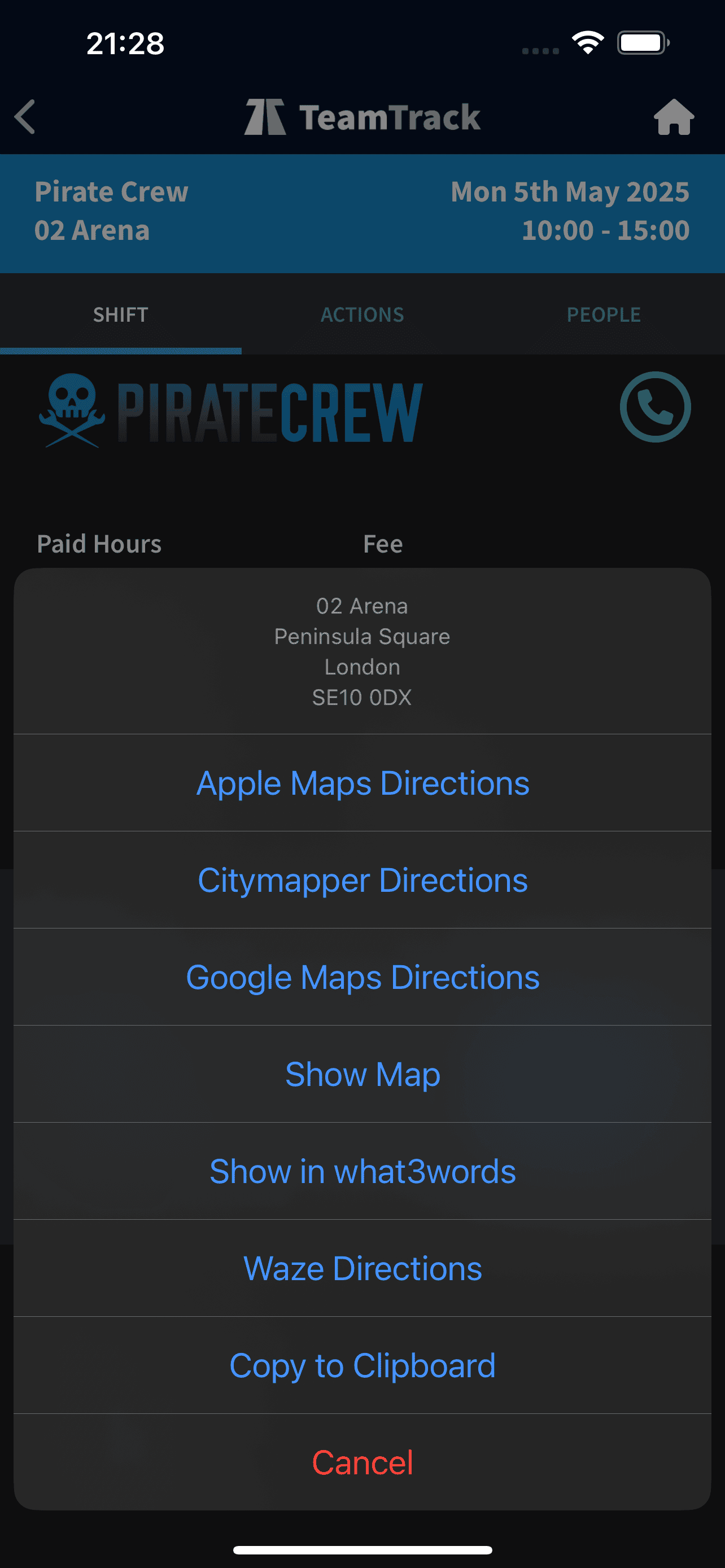
Along with the Venue Address, you’ll find What 3 words and Access to phone app maps. We’re currently updating all of our What3Words database to ensure they are taking you to correct meeting points – in the meantime it would be beneficial for you to download the W3W app.
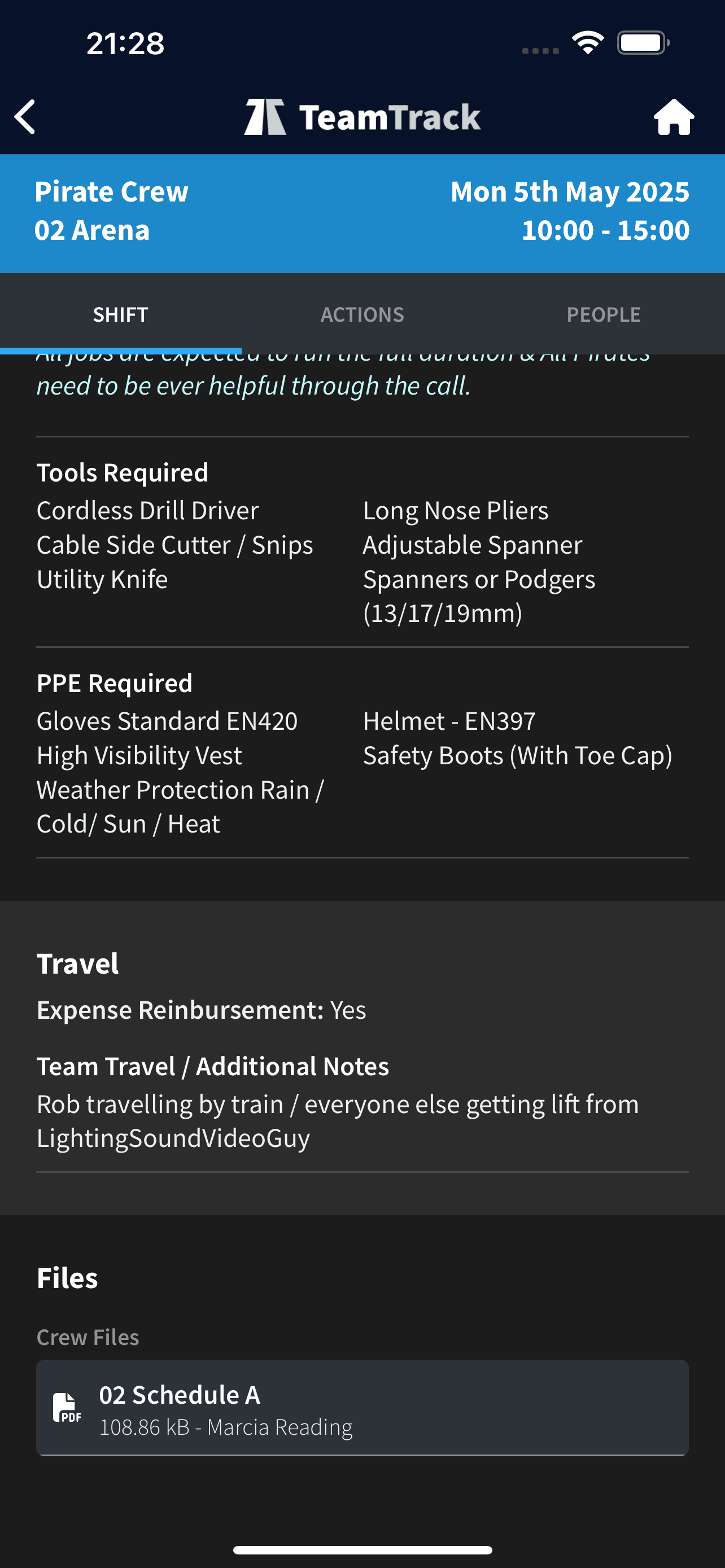
Job details, tools, PPE, group & individual Travel info, event documents (schedules, plans, RAMS) all included on this page.
Actions
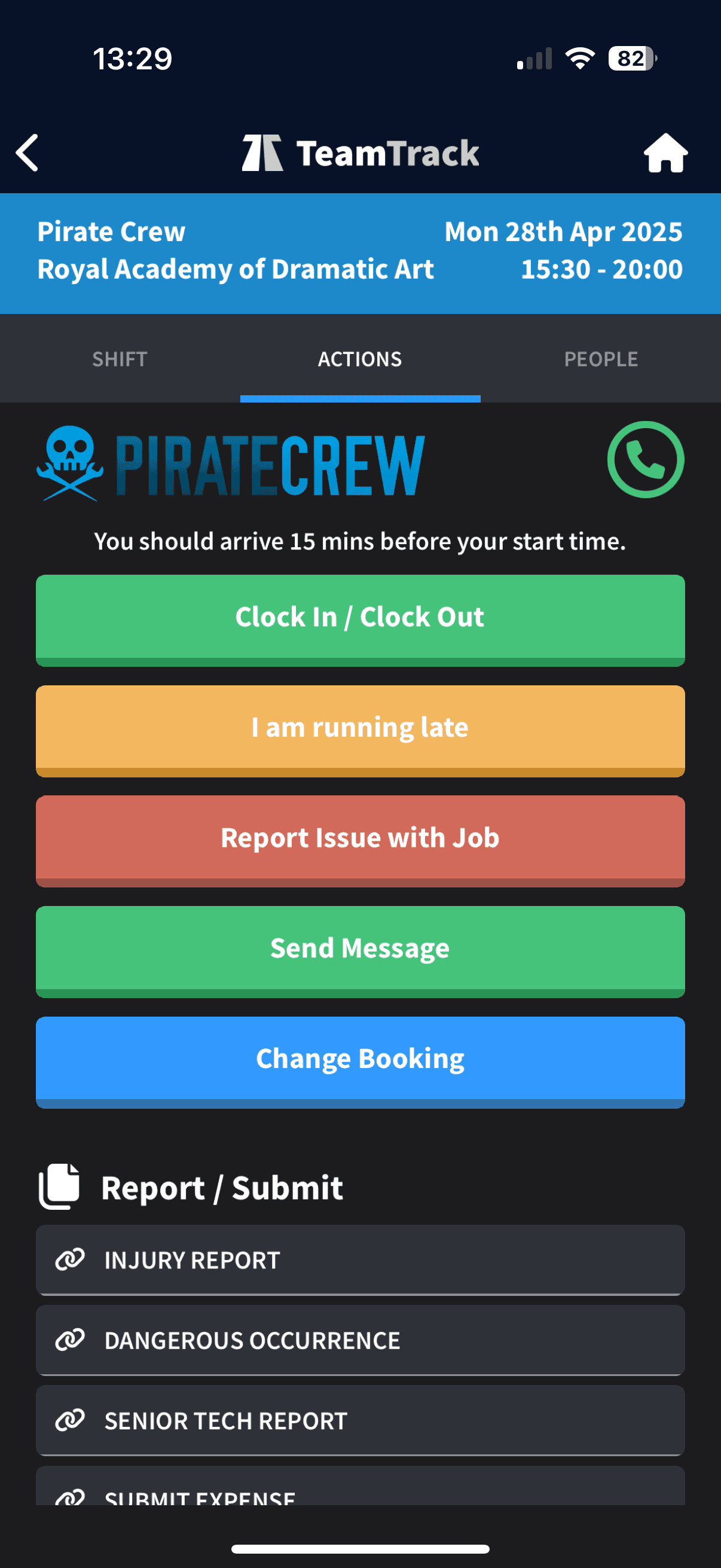
This is where you can do stuff:
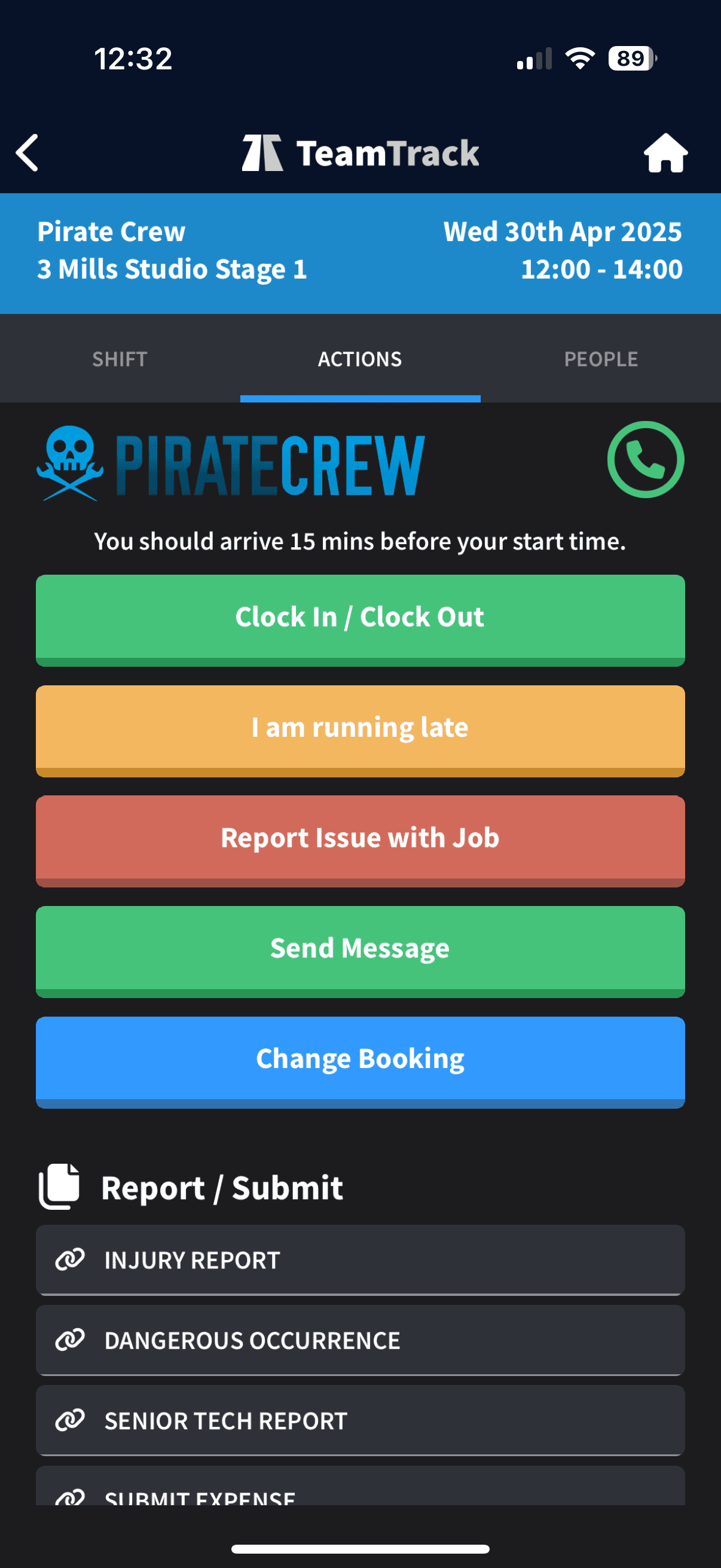
Clock IN / Clock OUT for the shift.
Running Late – Press this, tell us why and give us an ETA.
Send Message – Ask a question about the job either before or during the shift. Any direct reply will show in your notifications panel.
Report an issue – to inform us of a problem on site which is hampering the job going smoothly.
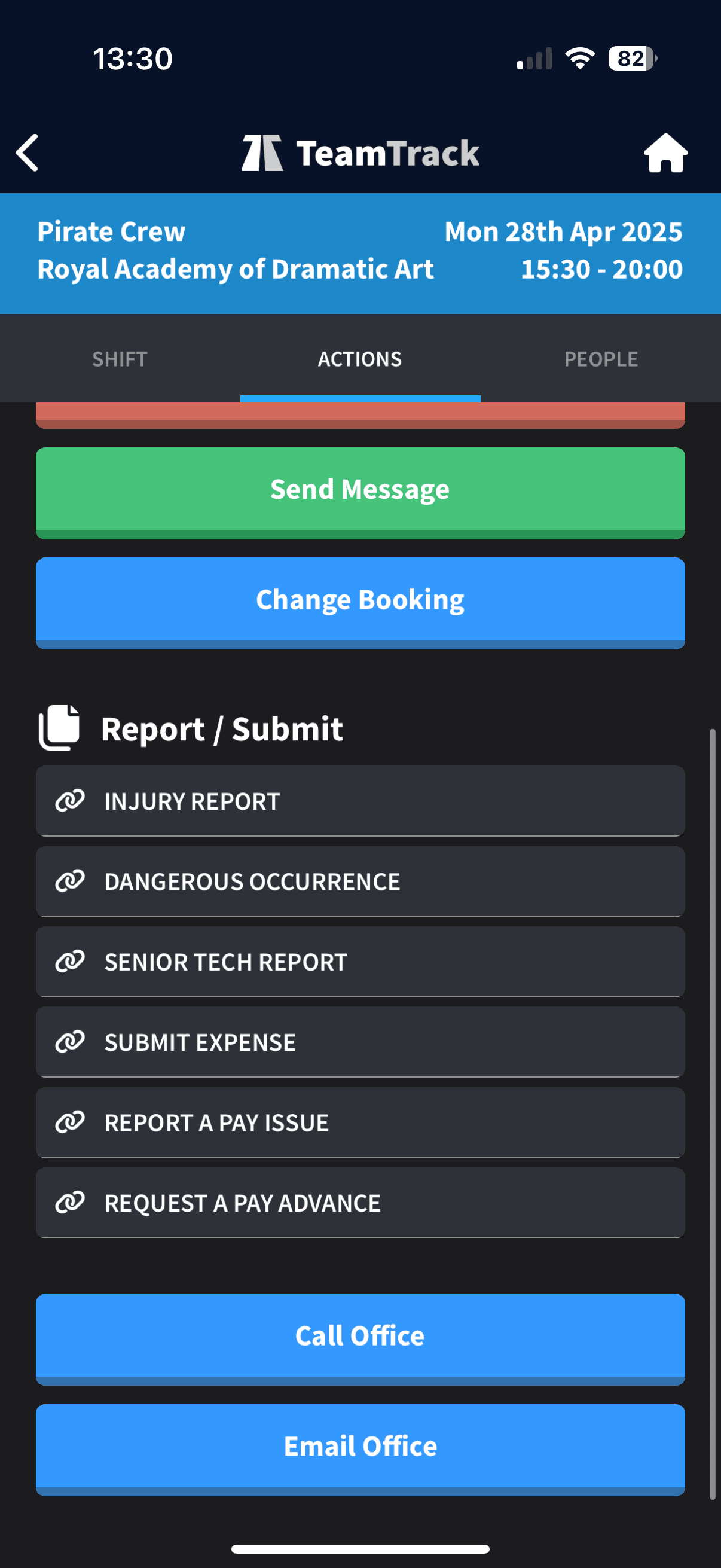
Submit an Expense – Unless you have agreed expenses with the office this option will not be available within the Actions Panel.
Change Booking – where you request a cancellation for the individual job. If you need to cancel more than one job, best to call us direct. Request To Cancel sends a message to our system that you want to cancel the shift. We’ll come back to you asap.
Note: if the job is within 7 days the app will instead direct you to call the office.At the bottom of the panel are the links to our usual forms and important information.
People
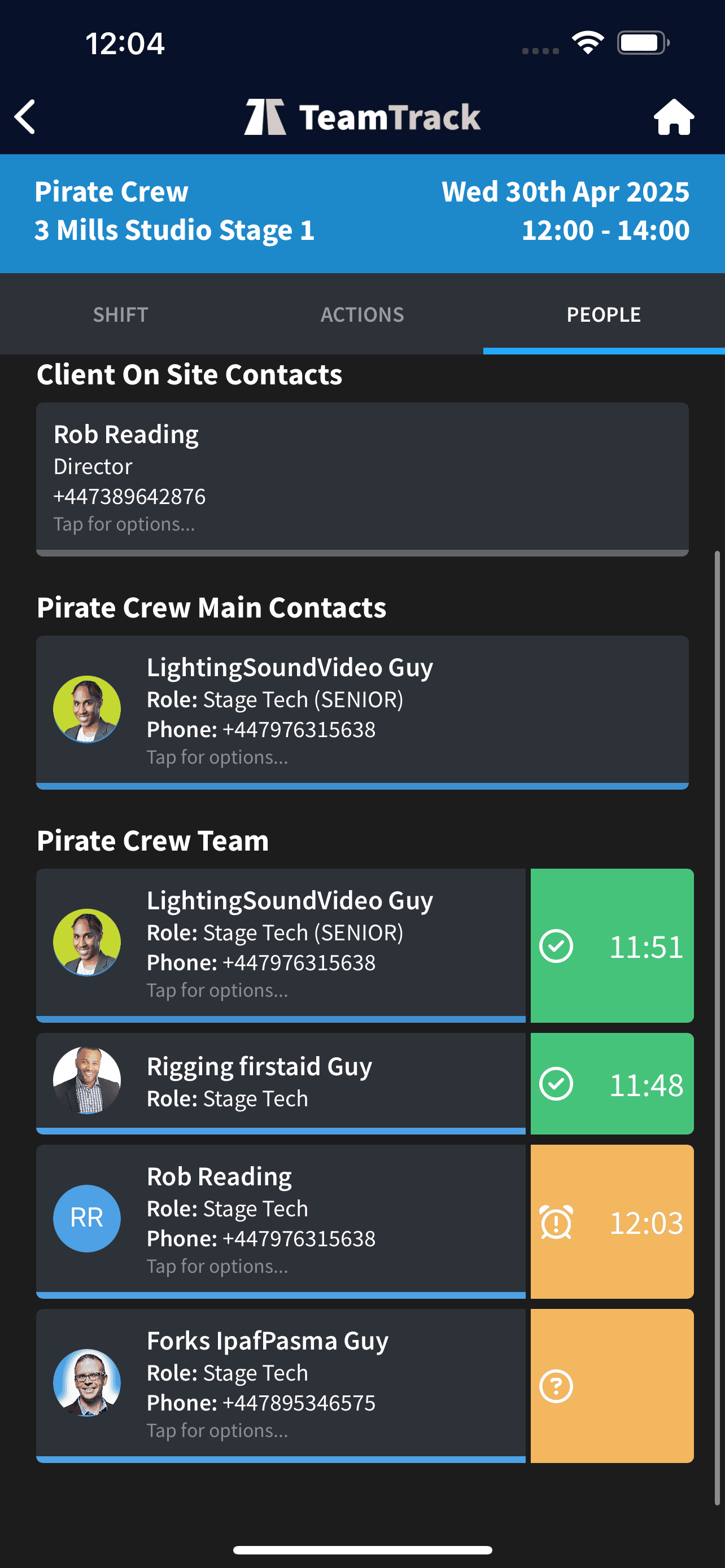
This panel holds all the critical information on the people who will be onsite with you.
Onsite contact(s): – Names and Phone Numbers
Your Pirate Crew Chiefs or POCs (Point of contact) – Name and Phone Number, so you know who to report to on the day.
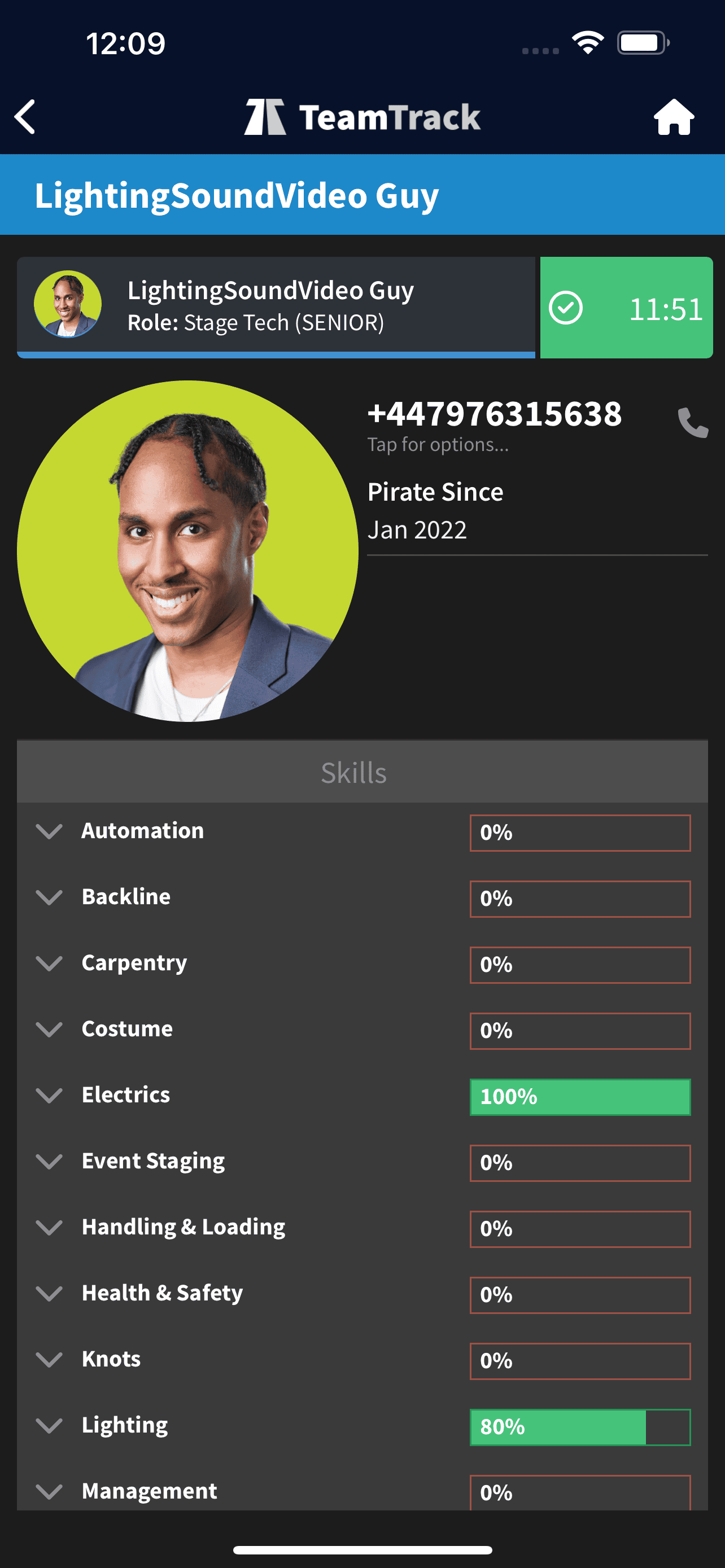
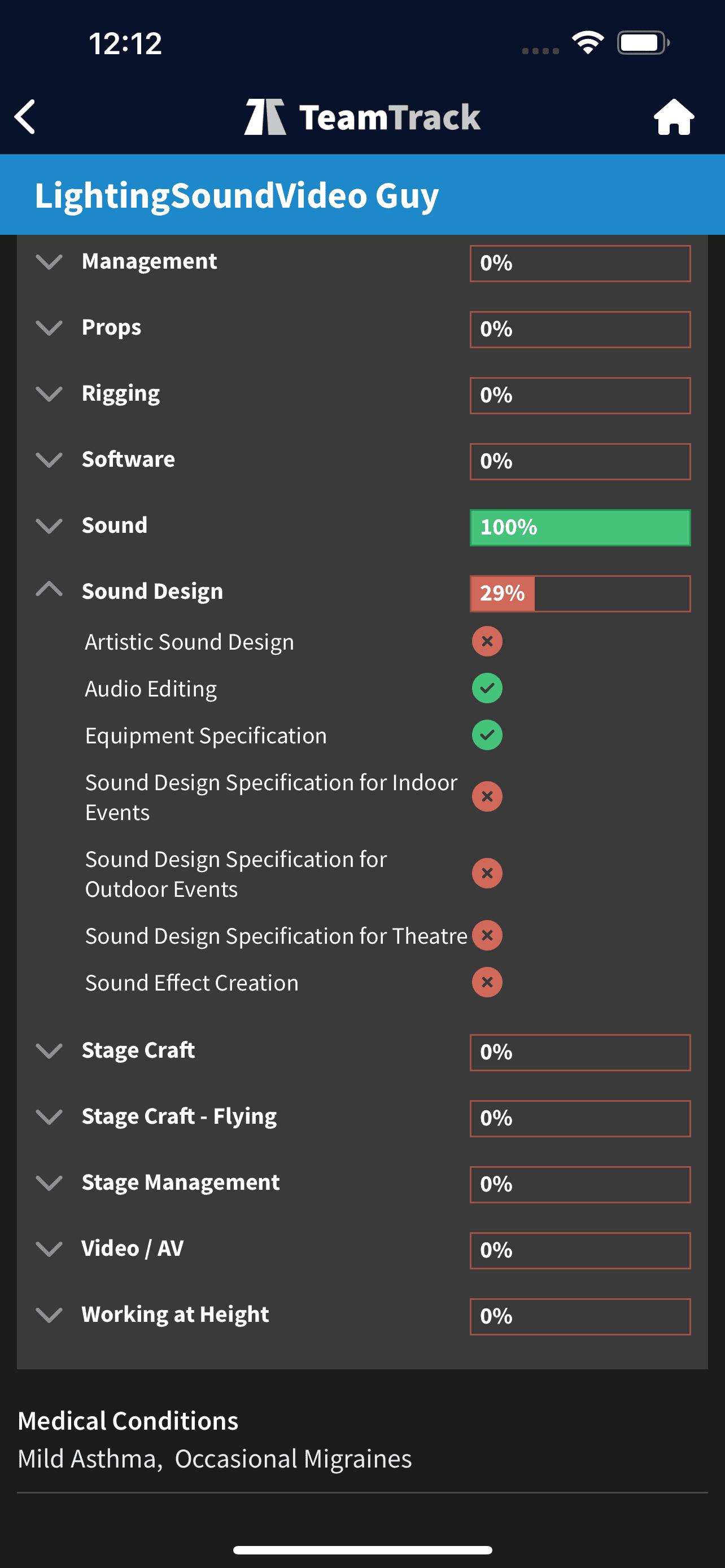
Your Pirate team’s Photo, Name, Tel Numbers. We also now include medical information, in case of emergency.
The POCs/Seniors on shift will have access to enhanced details – Individual skills, licences.
You can now view your team’s clock ins, in real time, so you know who may be missing.
If one of your team has declared they are running late on the app, their ETA will display instead of an arrival time, until they clock in.
on the day of the job
As of May 12th 2025, all clock ins will need to be done through the app. You can access this through the clock-in panel, or by clicking on the Pirate event through the HOME screen > Job Details.
If you have a job about to start, your app will send you a notification 15 minutes prior to the start time, prompting you to check in.
You’ll also get a reminder to clock in at 5 minutes too, if you haven’t already done so.
Lateness
Don’t be late. Just don’t be late for the job. Your arrival should be 15 minutes prior to the start so that you’re truly ready to begin work at shift start.
If by slim chance you are running late, then you can inform us via the app.
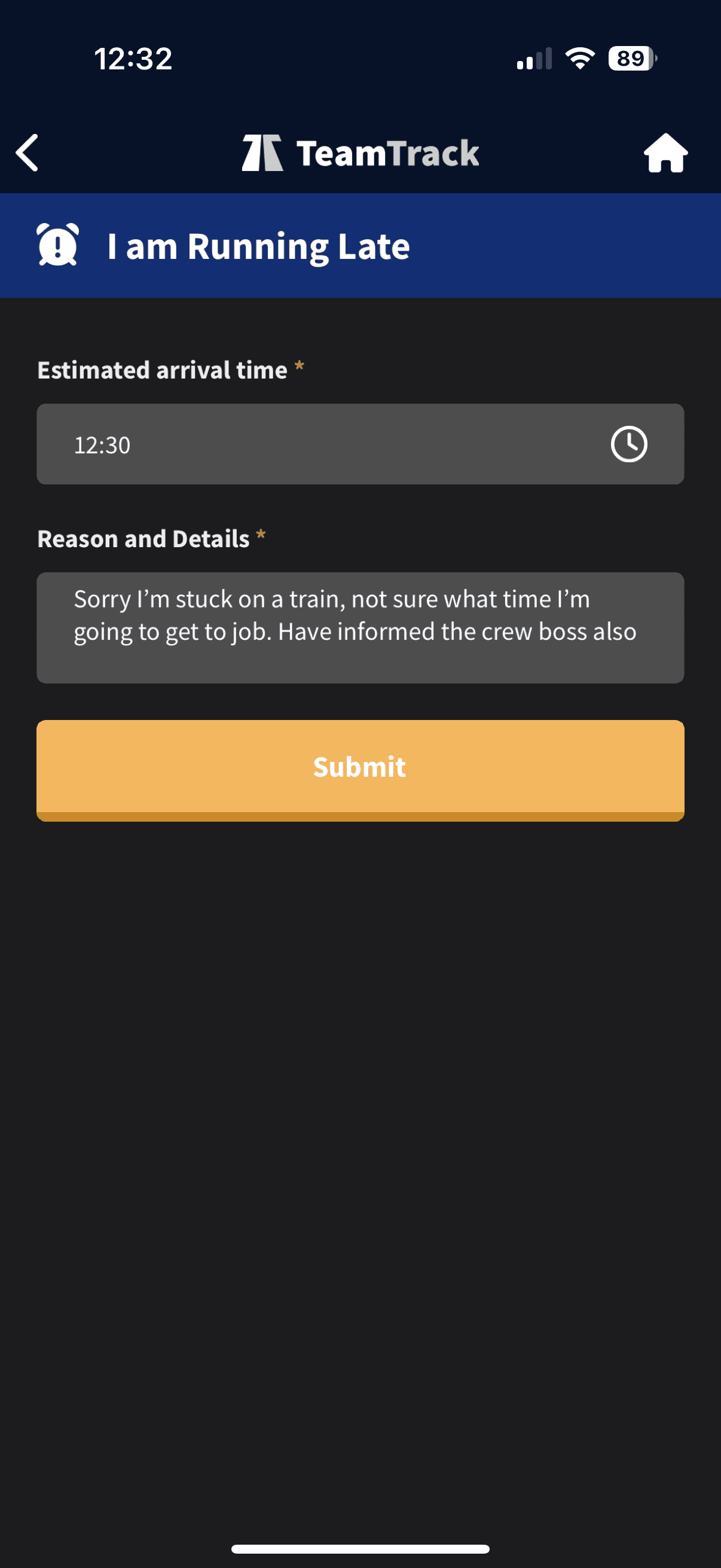
Press the orange “I am Running Late” button under ACTIONS Tab, give us an estimated time of arrival along with the reason. You can use this function more than once if you want to update your ETA
Onsite Issues
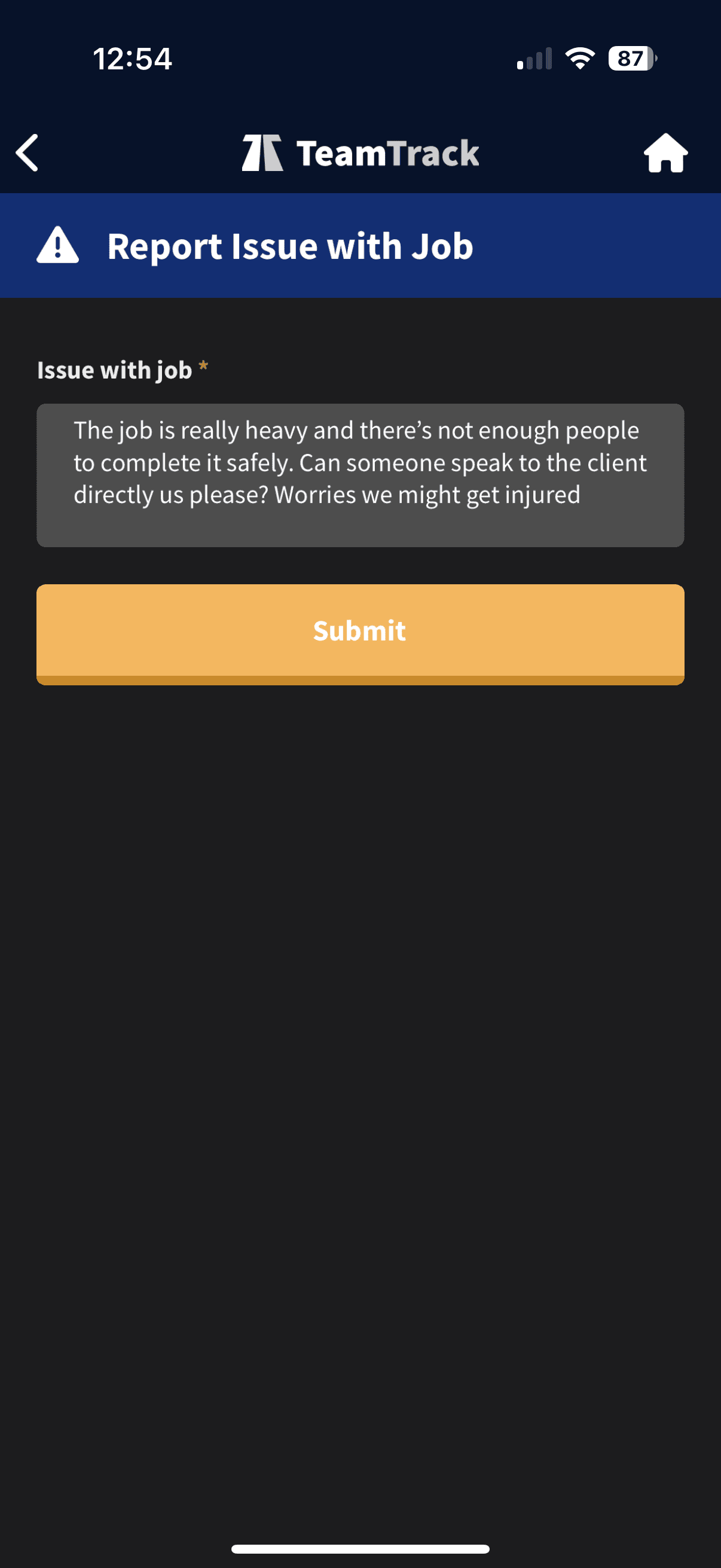
If you have any kind of problem with the job, yourself, your team, client, other contractors or environment, which is creating issues with delivering the job to a high or safe standard you need to let us know about it.
You can no inform us via the app red Report Issue With Job button. This will alert the office and we’ll then make contact with you.
You’re obviously still welcome to just call us anytime, by using one of the Phone Buttons on the job.
As long as we know, we’re happy.
Job Expenses
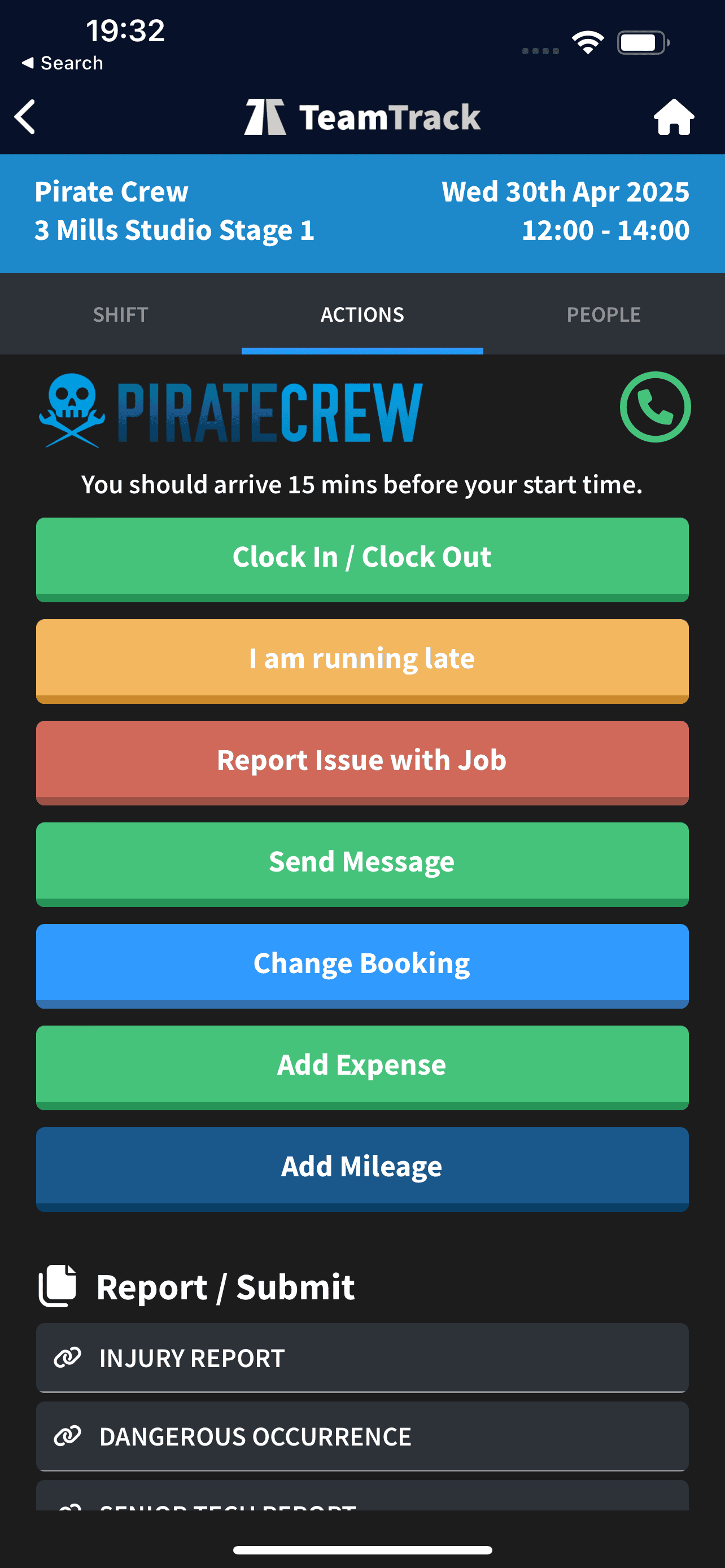
If expenses are allowed on your booking, either for agreed travel or another miscellaneous expenditure, then you’ll be able to submit it within the job. You’ll have a limit of 36 hours to complete this if you want it paid along with your job fee.
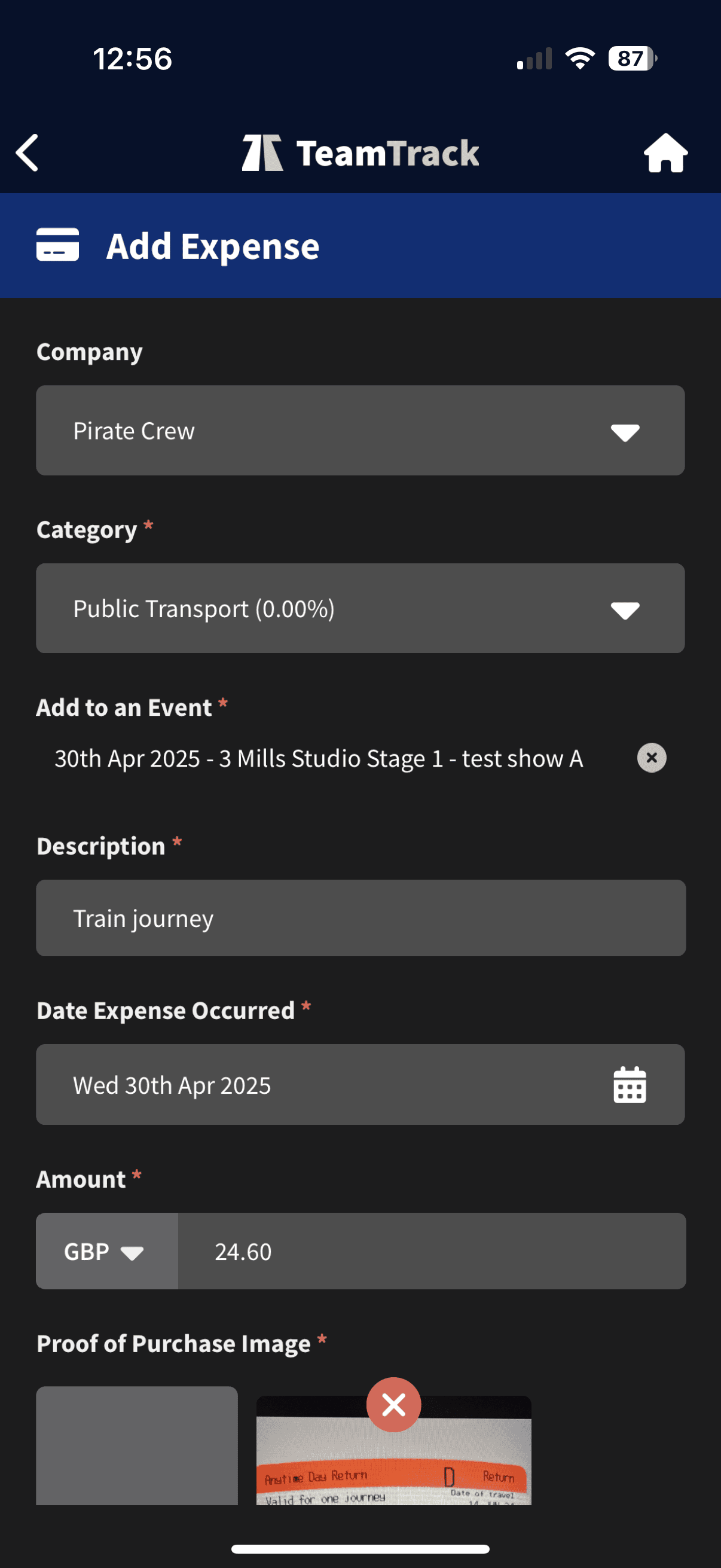
Hit ADD EXPENSE (Button won’t be available if expenses aren’t agreed)
Choose the appropriate expense type (Parking, Public Transport). If you’re adding an expense from within a job, the correct job will automatically be chosen.
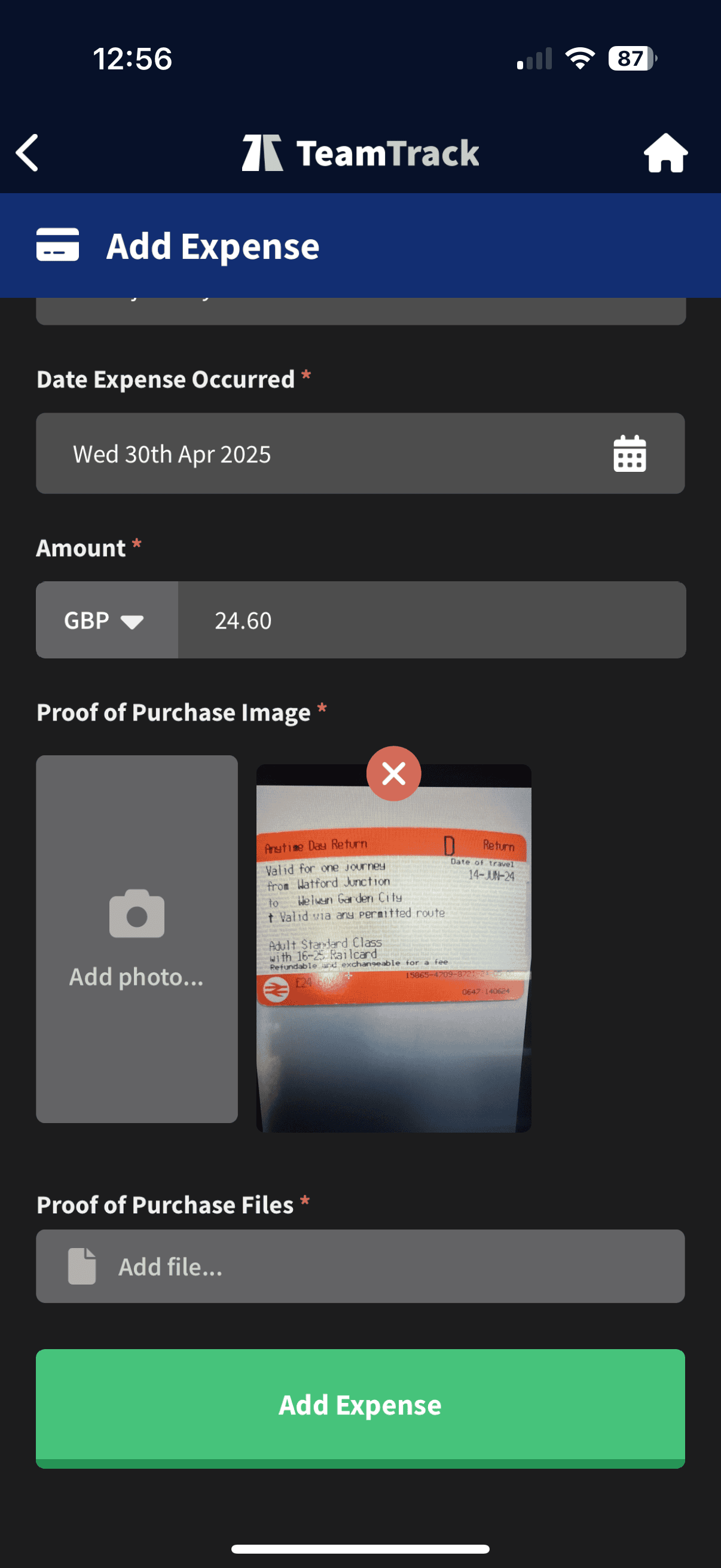
Drop us a description of the expense, especially if anything is out of the ordinary or more than expected. Add the amount and a supporting image OR file.
Hit the Green “Add Expense” button.
We’ll either approve this and add to your fee, or we’ll contact you with any questions.
If you’ve missed the 36 hour window you can still add an expense through the general menu, and for now we’ll be leaving our existing expense form in place.
Job Mileage
If you’re making agreed journeys out of town, picking up other crew or we’ve otherwise agreed it, mileage will be available to claim from within your confirmed job.
Press ADD MILEAGE and give us all the details.
You’ll have a limit of 36 hours to complete this if you want it paid along with your job fee.
We’ll approve or ask you further questions to make sure it’s correct.
If you’ve missed the 36 hour job expenses window, go to your app submenu and fill in the mileage form. To speed up payment, just remember to apply it to the correct job.
Clocking In
You’ll now be required to clock in and out within TeamTrack.
You’ll get reminder notifications to clock in at 15 minutes before your start time (which should be your arrival time) and again at 5 minutes before work start, if you haven’t clocked in already.
You need to clock in, regardless of whether you have submitted to us that you’re running late.
Access the clock in page through the job details, by first pressing the job in your home calendar. Clock in / Clock Out can be found on the Actions tab of the job.
When clocking in, be sure to change the time of your actual arrival, otherwise the app will assume you’re arriving now (at the time of submitting your clock in) by default.
Once Clock-in has been submitted, the panel will show you the Clock Out options and give you an opportunity to undo your last submission (Revert).
Hitting Back To Job will take you back to the job info panel.
If you are clocking in after the job start time, the app require you to tell us if you either:
- Started the shift late (pre-agreed change of start time)
- Arrived late for the job
- Forgot to clock in
You must be truthful with your answers.
Clocking Out
Access the Clock in / Clock Out panel within Job Info > Actions Panel
If you’ve already clocked in, you’ll now see the Clock Out options.
If you’re clocking out the moment you finish work (recommended), you won’t need to adjust the time.
If you’re clocking out later than your actual finish time, then please adjust the time for accuracy. Jobs completed before the planned finish time will still be paid at the booked rate, so give us the proper times please.
When Clocking Out we require the following details:
- Job finish time
- Your happiness with the job
- Details of how the job went.
All of these are super important so that we get feedback about each job, so that we can make improvements.
Under Details we would like to know anything pertinent that we might not already know about the job: Safety, Client, The team, your personal contribution, skills you may have learned, tasks that were completed – anything relevant that will give us an insight of what happened on-site.
If you clock out after the planned finish, you’ll have the option to tell us if you’ve worked overtime (only upon client request) or simply forgot to clock out.
Availability and Your own events
Adding your own events
Why?
We’ve worked with the TeamTrack app developers to add this important but simple tool which hopefully you will find useful to add your own paid / unpaid events.
We hope that this tool will help you keep on top of your work schedule, avoid getting unnecessary offers of work when you’re already busy, and see all your past and future booked earnings, to help you budget your personal finances.
Adding your own events has been geared towards paid work, where you can apply fees to any gig that will then add to your Pirate totals in My Earnings panel. But you can log any event personal or professional.
You can block out specific hours or just specify All Day.
Whatever details you add to this event cannot be seen by the Pirate Office. We only see the time blocked out as unavailable.
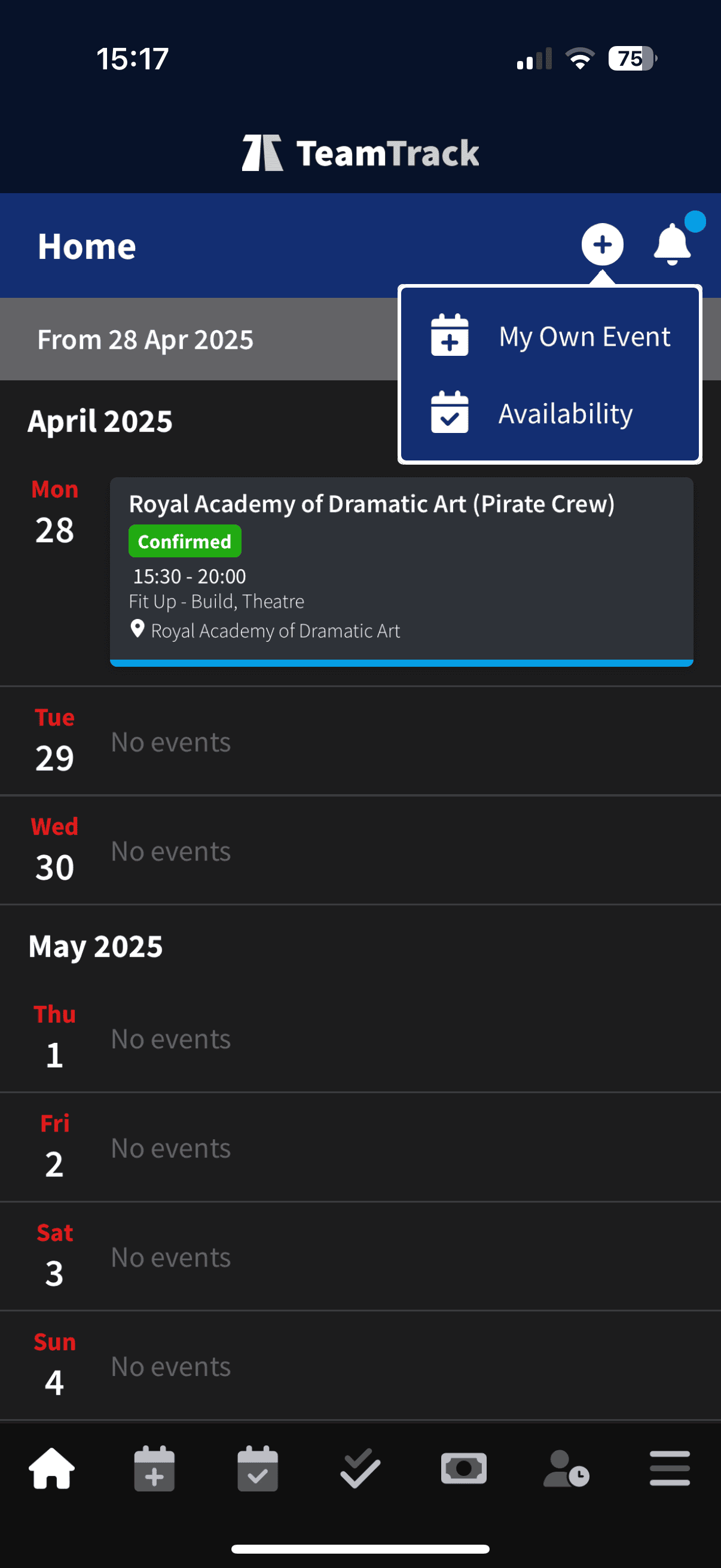
Access Add own event and availability from your home screen
How?
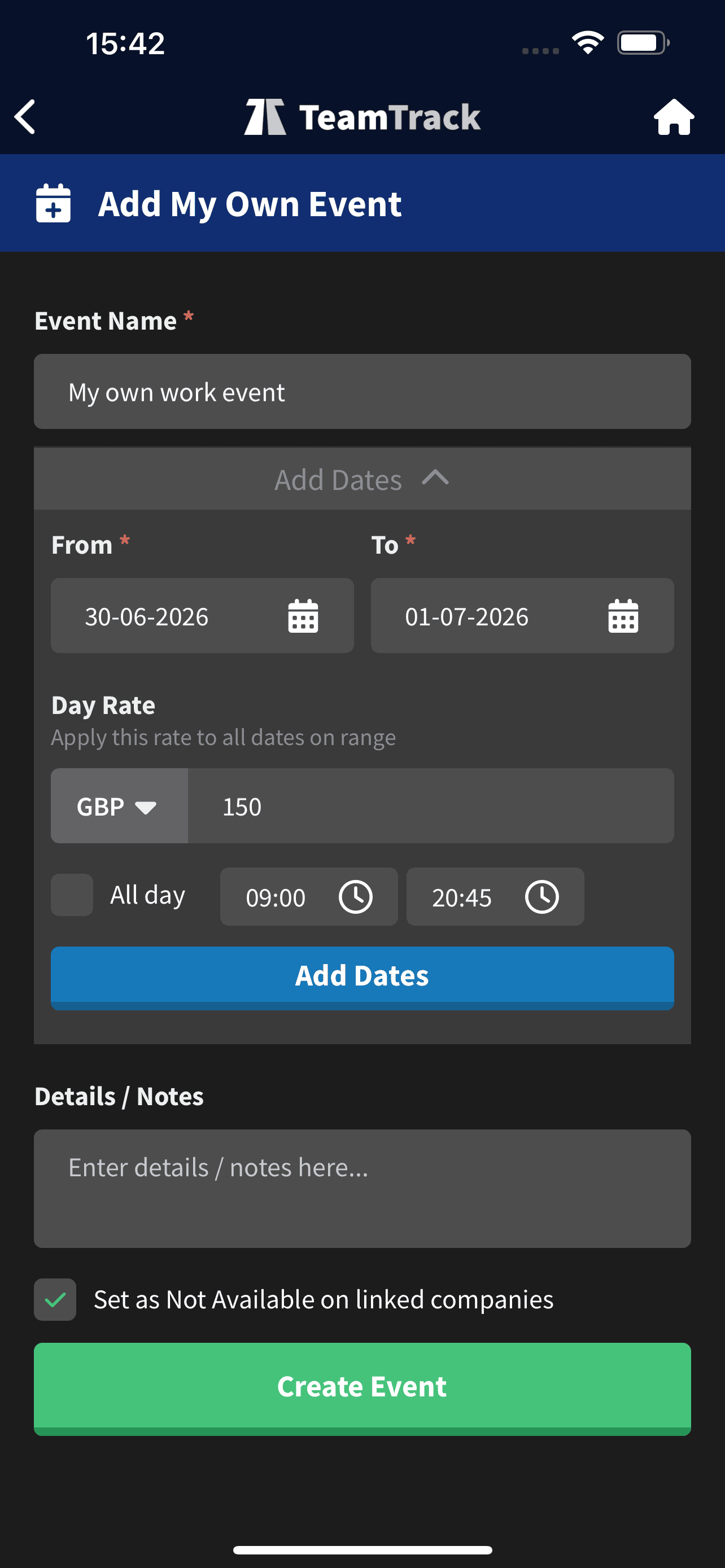
First enter event name – whatever you want as the signifier but try to be specific so that you can find it using the Home search function.
Add singular or Multiple consecutive dates for your event.
Option to add a Fee rate that you’ve been offered for the work. This contributes towards your My Earnings totals.
Choose between All Day or specify start and finish times.
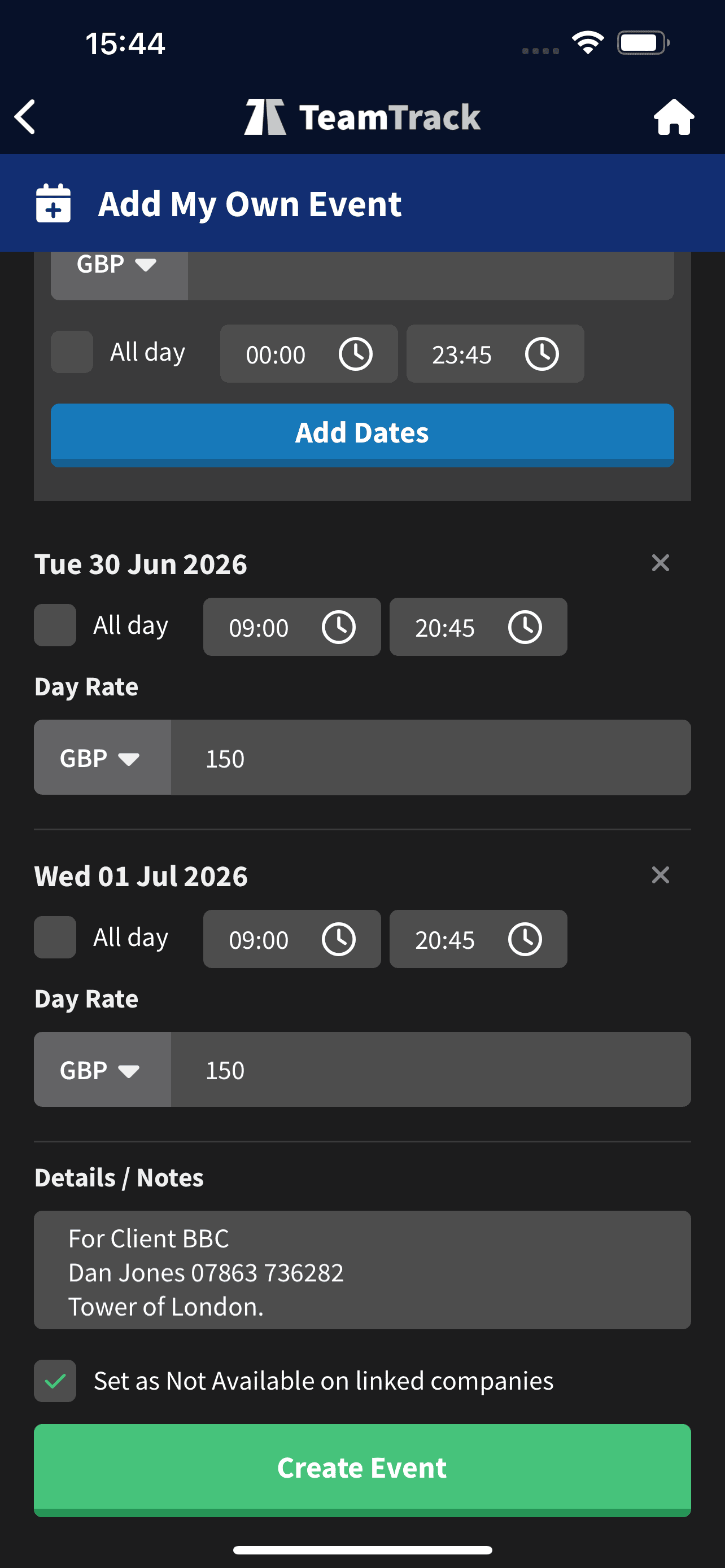
Now press ADD DATES – this will generate singular editable entries for all the added days.
Details/Notes is a freehand field for you to add anything you want: Contacts, addresses, notes, tools, things to remember.
Set As Not Available is automatically chosen by default. You should untick this if you still want to receive work offers on these days.
Press Create Event
If any of the events clash with anything already in your schedule, the app will alert you and give you the option to change the details, or continue to create the events with scheduling conflicts. Be very careful not to create schedule clashes that conflict with each other.
Giving us your availability
Why?
We get it – you’re a crew person, an event technician – and giving us your availability just feels like unwanted admin!
But listen up! We’ve worked hard to just make this as easy as it can be for you, and it’s all for your benefit (alright, and ours too).
If you’ve started using the Add Own Events function, which automatically shows us when you’re not available for some offers – Now its time to level up your game and keep your availability up-to-date as well.
If you don’t use the app to log your own events then you should at least be using the availability tool to choose blocks of time, or full days/weeks for when you definitely do or don’t want work offers.
What you may not know:
We use a lot of information about people’s experience, skills and locations to narrow down a shortlist for any job, as we strive to make every team as perfect as it can be. But the simple fact is that a higher percentage of people who give us their availability get offered work first, over those who do not.
You’re free to accept or reject jobs, come in and out of active Pirate service, whenever you please. But if you reject a high percentage of job offers – we’ll naturally prioritise people who are accurate with their calendars and accept shifts – it’s the only practical way for us to operate.
We know you don’t want to be bothered with work offers you can’t possibly take – that’s a frustrating waste of time for all involved. It makes everyone’s job harder and slows everything down.
We want to spend time developing crew, strengthening client relationships and generally making Pirate world a lovely place to be for everyone.
Less back and forth. More relevant work offers. Everyone wins.
So…… JUST DO IT, with thanks.
How to add availability in TeamTrack
In the availability panel which you can access from the Home Screen or an optional shortcut on the bottom icon menu. (go to app Settings to adjust this)
Choose who you want to send availability to, all your TT using clients will be listed here. if you only work for Pirate we’ll be listed automatically.
There are two ways to add dates:
Method 1 – Add a Date Range
- Select the date range with the From and To date finder
- Select the type of Availability you want to submit: AVAILABLE or NOT AVAILABLE)
- Tap ADD RANGE
Method 2 – Tap Dates on the Calendar
- Find the date(s) on the calendar.
- Tap once = AVAILABLE
- Tap twice = NOT AVAILABLE
- Tap a third time = Clear the date
You now have the option to leave each date as ALL DAY, or simply untick all day and choose the times of the availability. You can choose to leave a note to us if you want.
Finally Click SEND AVAILABILITY – now your and our calendar (and ours) is up to date.